Adobe Firefly Tutorial: Turn a Portfolio Into a Red Carpet Fashion Concept
A portfolio image becomes a creative brief
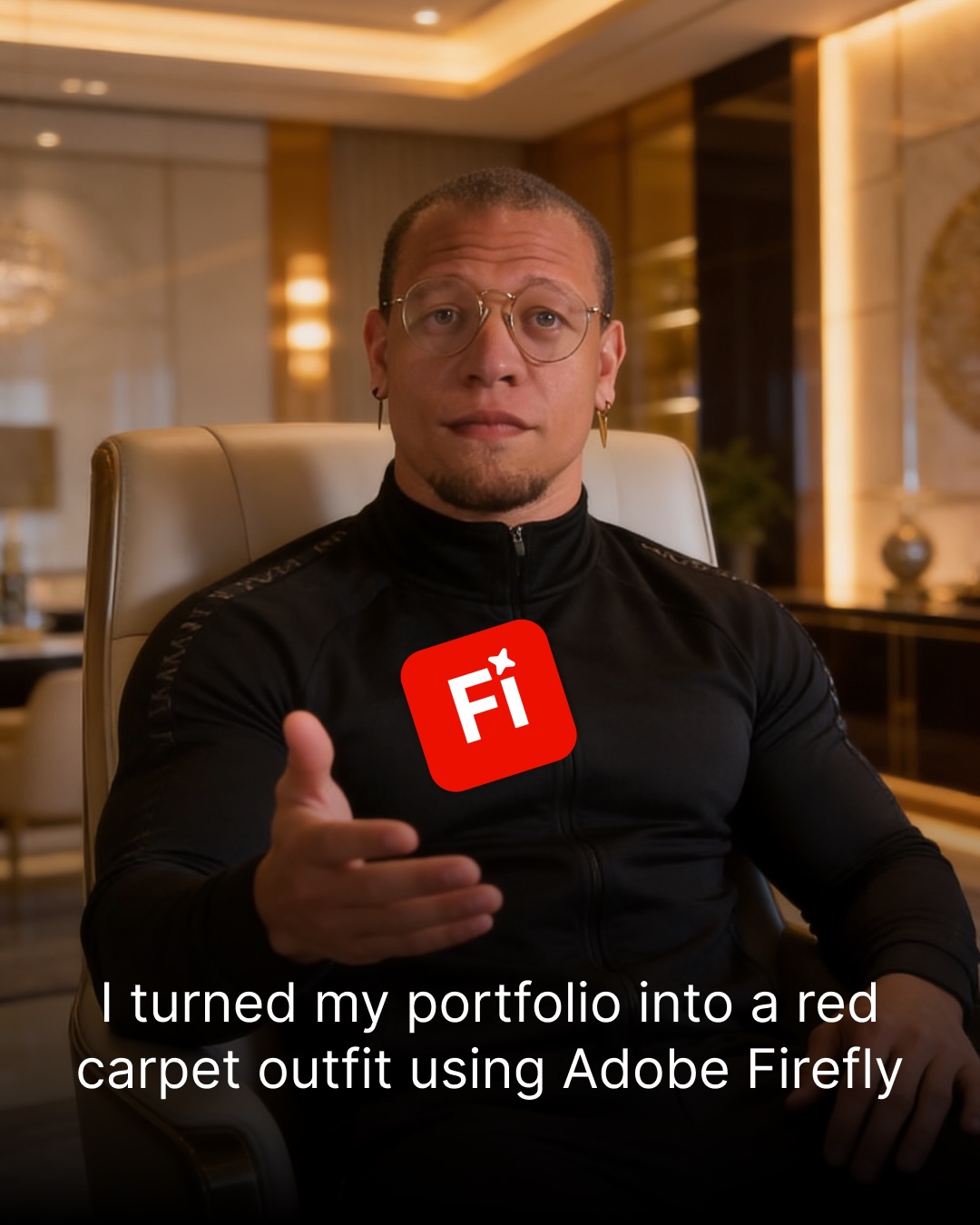
A personal portfolio can become more than a grid of finished work. In this experiment, a designer combines a screenshot of a portfolio with a portrait, then asks Adobe Firefly to reinterpret that material as a red carpet look. The result is a playful visual concept, not a literal outfit recommendation or a replacement for the original work.

The useful lesson is the process: begin with a clear creative question, bring in source material that matters to you, generate a first direction, and refine what the image should communicate. The original carousel was created in partnership with Adobe and walks through this compact workflow. Here is how to make the experiment more deliberate and repeatable.
Step 1: Decide what the transformation should express
Start with a question that can guide the image. “What would my design look like as an outfit?” is more useful than “make something cool” because it gives the model a relationship to interpret. You might translate the colors, shapes, or mood of a portfolio into fashion details, or imagine a single project as a red carpet editorial.

Write down three visual cues before prompting: a dominant color, a recognizable shape, and a mood. For example, a portfolio with bold cobalt blocks, sharp geometry, and an energetic tone can become a structured blue silhouette with graphic accessories. This brief gives you a basis for judging the output instead of accepting the first attractive image.
Step 2: Choose source images with a purpose
The creator's process pairs a portfolio image with a personal photo. Use a screenshot that clearly shows the work you want to reference, and a portrait you have the right to use. Check that the face is visible, the lighting is reasonably clear, and the framing leaves room for the transformation. A low-resolution crop or a busy background can make the result harder to judge.


Before uploading, remove private client information, internal notes, or anything you do not want to send to a generative service. If the portfolio includes work created for a client, check the relevant agreement and use a permitted image. A personal experiment should not expose a confidential project just because it makes a more interesting prompt.
Step 3: Prompt for the relationship between inputs
A prompt works better when it describes the transformation, the desired composition, and what should remain recognizable. Try a structure like: “Create a polished red carpet fashion editorial inspired by the color palette and geometric shapes in this portfolio screenshot. Use the uploaded portrait as the identity reference. Preserve a natural face and realistic proportions. Make the outfit sculptural, elegant, and clearly influenced by the design work.”
This is a starting point, not a magic phrase. Keep the key intent stable while changing one variable at a time. If the portfolio influence disappears, strengthen the color or shape reference. If the outfit looks implausible, ask for a more wearable silhouette. If the face changes too much, simplify the scene and inspect the available controls in the current Firefly experience.
Step 4: Review the image, then adjust one thing
The carousel's sequence is intentionally simple: idea, prompt, adjustment, result. Treat the first generation as a sketch. Compare it with your brief. Does it carry the portfolio's visual language? Is the person recognizable and represented respectfully? Are there artifacts in hands, jewelry, seams, text, or background objects? A striking image can still need a careful second pass.

Use Adobe's Generative Fill guidance when you need to add or replace a specific area rather than regenerating the entire image. Keep an original copy, make edits in small regions, and compare each revision with the source. This preserves more control and makes it easier to back out of a change that weakens the concept.
Step 5: Share it as an experiment, not as a finished product claim
A portfolio-to-fashion image is a conversation starter. Label it as AI-assisted concept work, identify the source projects you have permission to show, and avoid presenting the generated look as a real campaign or a client deliverable. If you publish it, include the tool and enough context for viewers to understand what was generated and what you contributed.

The same method can be adapted to other personal projects: turn an illustration into a room palette, translate a brand system into a poster, or reimagine an interface as a physical object. Each experiment is strongest when it has a clear input, a specific question, and an honest explanation of the result.
A fast creative exercise
Set a ten-minute timer. Pick one project, choose a portrait or other source image you can use, and write a one-sentence transformation brief. Generate a direction, then make one focused revision. Save both versions and note what changed. You will learn more from comparing the two than from collecting a dozen loosely prompted outputs.
The original carousel was published in partnership with Adobe. Explore Adobe Firefly for current image-generation and editing features, and check the product's current usage and licensing information before using generated assets commercially.
View the original Instagram carousel.
Related on NewForm
Keep reading
Find Your Stack
Discover the perfect design tools for your workflow.
Take the 60-second quizNewForm Studio
Turn your designs into professional mockups instantly.
Open StudioMore from NewForm
Best AI App Builders for Designers in 2026: What to Choose for Real UI Work
Compare Base44, Lovable, Bolt, v0, Replit and Framer for design fidelity, control, real app behavior and pricing. A transparent evaluation guide for designers.
9 min read · Oct 30, 2026

How to Use Adobe Firefly AI Assistant to Restyle a Portrait
A practical, art-directed workflow for exploring portrait styles with Adobe Firefly AI Assistant, from the source photo and prompt to reviewing and refining variations.
4 min read · Oct 30, 2026