
9 Figma Agent Skills to Improve Your Design Workflow
A roundup of useful Figma agent skills, originally shared by Noahelhadedy.
Figma agent skills can turn repeated design chores into reusable, context-aware workflows. The useful question is not how many skills you install, but which task you want to make more consistent. A focused skill can review a screen, audit spacing, generate component documentation, or adapt a desktop layout for mobile.
This guide turns nine examples into a practical selection and adoption process. Start with one recurring problem, test a skill on a real file, and keep a human review step for decisions that affect usability or brand quality.
1. Start with the interface task
The Better Interface skill is presented as an all-around aid for building a stronger interface. Treat that breadth as a starting point, not a promise that one instruction set can replace design judgment. Give it a defined screen and objective, such as improving hierarchy on a pricing page, then compare its suggestions with your existing design principles. A precise brief makes its output easier to assess and keeps the skill from making broad, unrequested changes.
2. Use design review to surface questions
A canvas-based design review can help a team notice issues before handoff. Ask for feedback against specific criteria: hierarchy, consistency, accessibility, and likely user confusion. The output is most useful as a list of hypotheses. Confirm each observation in context, especially when the reviewer does not know product constraints, research findings, or technical limitations.
3. Turn components into usable documentation
Component handoff documentation pays off when a component has variants, states, or implementation rules that are not obvious from its appearance. Use the generated notes to explain intended use, available properties, and edge cases. Then have a designer or engineer verify names and behavior against the library. Documentation is only helpful when it reflects the actual component, not an imagined ideal.
4. Adapt desktop work for mobile
A desktop-to-mobile skill can accelerate the first responsive pass. Its job should be to propose a layout, not to shrink everything proportionally. Check content priority, touch target size, navigation, and how dense tables or sidebars change on a narrow screen. Compare the result at realistic device widths and preserve the original frame so the team can review the transformation.
5. Explain anatomy and motion
Anatomy documentation with numbered markers and attribute tables can make a complex screen easier to discuss. It is particularly useful for onboarding, design reviews, and developer handoff. Check that each marker points to the intended element and that names match your component vocabulary.
Motion suggestions are strongest when they explain what user need an animation serves. Use the skill to identify transitions that communicate state, cause and effect, or continuity. Skip decorative movement that slows a task, distracts from content, or creates accessibility problems. Test reduced-motion behavior as part of review.
6. Audit spacing and interface copy
A spacing audit can find inconsistent gaps and margins, but a four- or eight-point scale is a useful system rather than an absolute law. Check the audit against your tokens and the visual rhythm of the product. Do not automatically normalize a deliberate exception, such as a compact data table or a larger separation between sections.
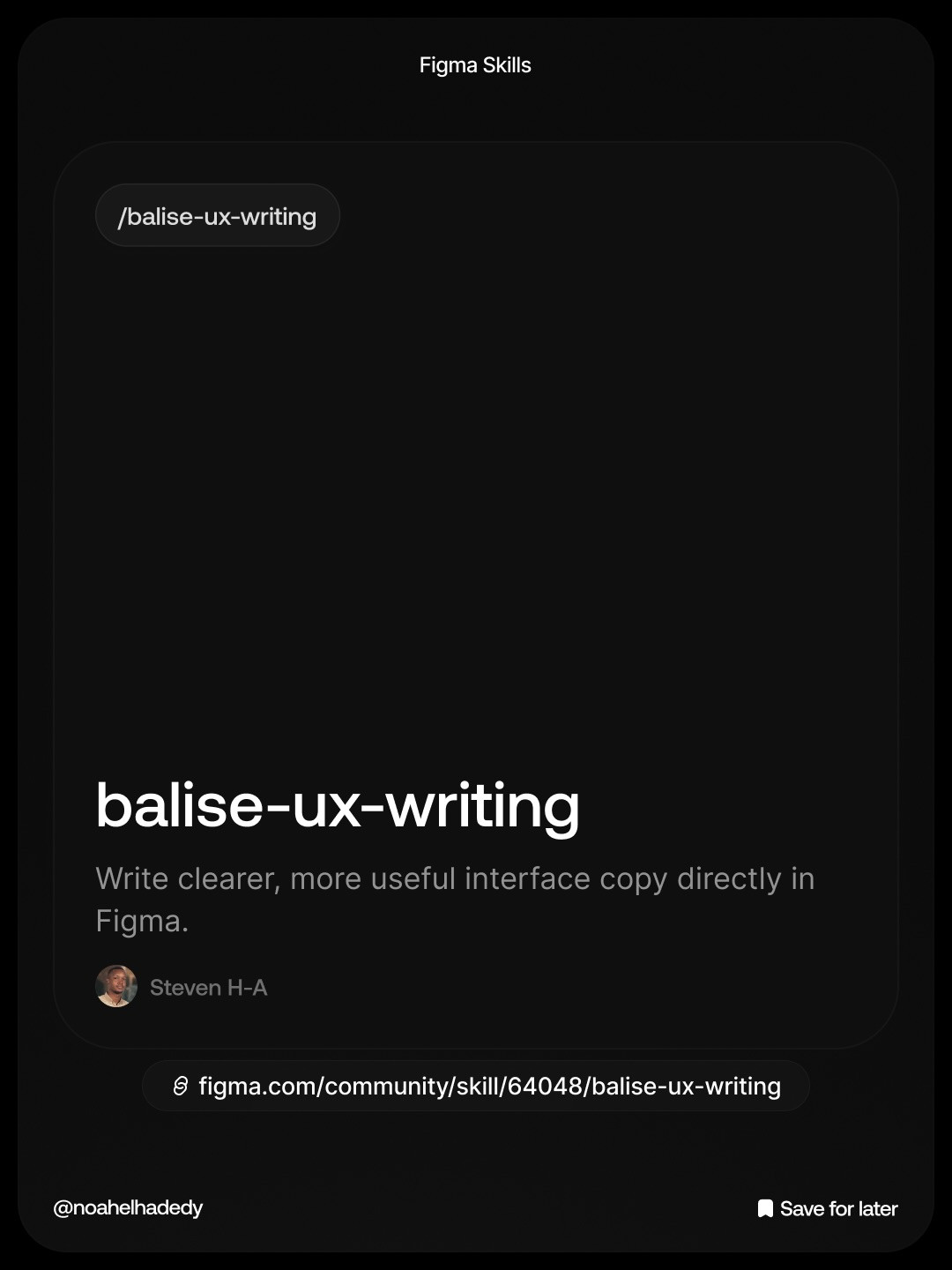
UX writing support inside the canvas can help reveal vague labels and confusing actions. Give it a defined voice and ask it to improve one flow at a time. Review labels, errors, empty states, and confirmations together, since wording that works in isolation may create inconsistency across a journey. Validate important copy with users when the stakes warrant it.
7. Analyze component libraries carefully
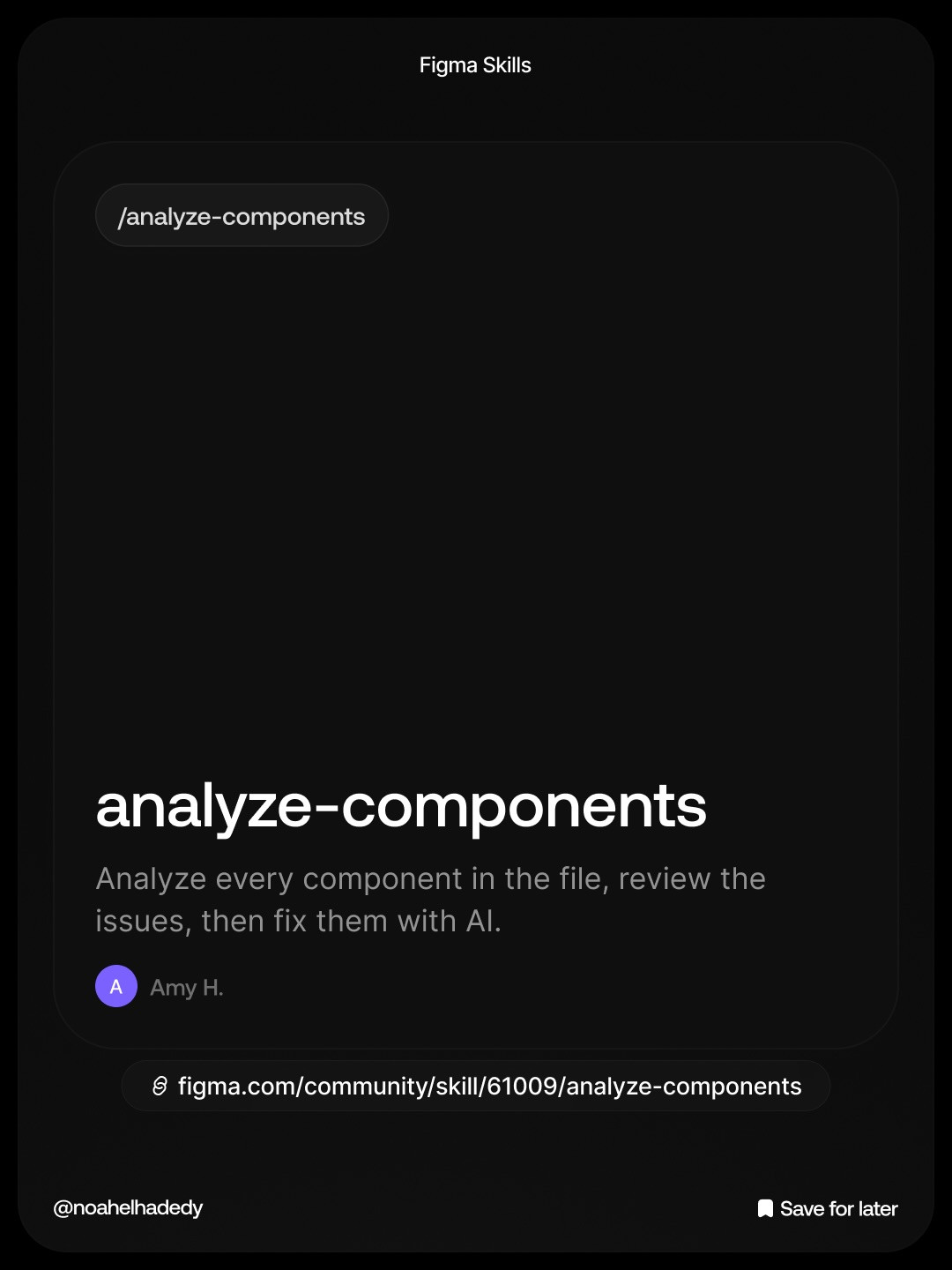
Component analysis can help find duplicate patterns, inconsistent properties, and opportunities to consolidate a library. Before accepting a suggested fix, check whether apparent duplication reflects genuinely different use cases. Refactoring a shared library can have broad downstream effects, so test changes in a branch or copy and document breaking changes for consumers.
A practical way to adopt a Figma skill
Choose one task that happens often and has a visible quality check. Duplicate a representative file, record the current manual steps, run the skill with a narrow prompt, and compare the result against the original. Note what it got right, what needed correction, and how much time review took. If the quality is reliable, save the prompt and define when a person must approve changes.
Keep permissions and scope narrow. A skill that can inspect a whole file may encounter confidential or unrelated material, so use the smallest relevant working file. Do not accept bulk edits without reviewing the affected components and screens. Agent output can be useful and still be wrong about product intent.
Which skills are worth trying first?
For a small product team, start with the most measurable problem: spacing drift, repetitive documentation, or a common responsive adaptation. For a design system team, component analysis and handoff documentation may have a clearer payoff. For an individual designer, screen review or UX writing may help create a second-pass checklist. The best first skill is the one whose output you can verify quickly.
The carousel lists nine skills, including Better Interface, Superfuture Design Review, Component Handoff, Desktop to Mobile, Create Anatomy, Find Animation Opportunities, Spacing Audit, Balise UX Writing, and Analyze Components. It also encourages saving the examples for later. Check the linked Figma Community skill pages for availability and current details before adopting a workflow.
Final checklist
- Name a repeated design task and define a successful result.
- Try one skill on a representative duplicate, not the only production file.
- Review factual details, accessibility, and consistency with your design system.
- Keep a human approval point for broad or irreversible changes.
- Measure the time saved after review, not just the speed of the first output.
This article is based on the carousel by Noahelhadedy. Explore the original Instagram post for the full visual list.
Related on NewForm
Keep reading

Find Your Stack
Discover the perfect design tools for your workflow.
Take the 60-second quizNewForm Studio
Turn your designs into professional mockups instantly.
Open StudioMore from NewForm
Best No-Code App Builders for Designers in 2026: Base44 vs Bubble vs Adalo vs Glide
Base44 ships prompts to real apps fastest, Bubble wins on complex custom web products, Adalo publishes to the app stores, Glide turns spreadsheets into tools. A designer-first comparison with pricing and trade-offs.
9 min read · Nov 2, 2026

How to Extract a Brand Look from an Image in Adobe Express
Use Adobe Express’s Brand panel and “Extract from image” as a visual starting point, then refine the crop, color, and copy with a practical pre-publish checklist.
5 min read · Oct 31, 2026