
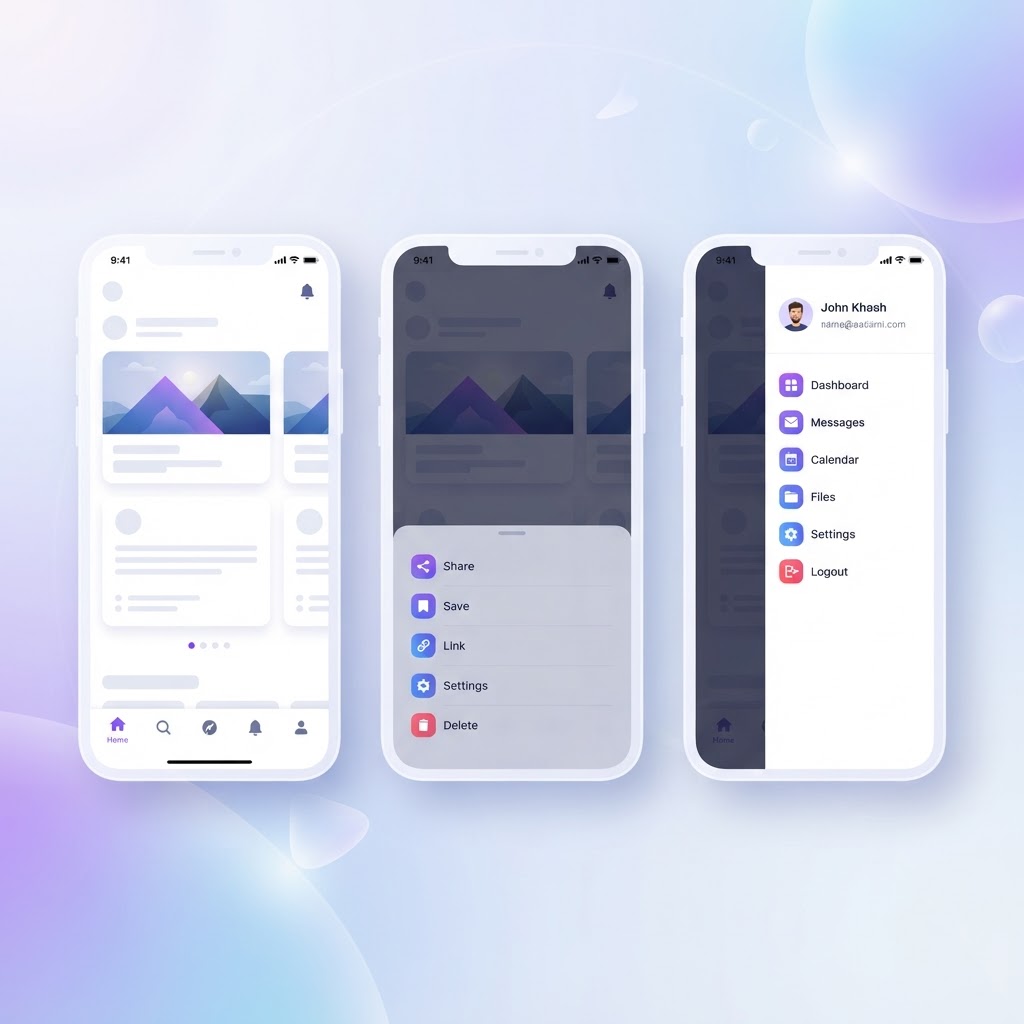
Mobile Navigation Patterns: When to Use Tabs, Drawers, and Bottom Sheets
Mobile Navigation Patterns: When to Use Tabs, Drawers, and Bottom Sheets
Navigation can make or break a mobile app. Get it right and users move through your app effortlessly. Get it wrong and they bounce. The three most common mobile navigation patterns, tabs, drawers, and bottom sheets, each have specific use cases.
Bottom Tab Bar: The Default Choice
The bottom tab bar is the most popular mobile navigation pattern for a reason: it works. Users can see all primary destinations at a glance and reach them with their thumb.
When to use tabs:
- 3-5 primary destinations
- Destinations that users switch between frequently
- When all destinations are equally important
- When you want navigation always visible
When NOT to use tabs:
- More than 5 destinations (tabs become cramped)
- Deep hierarchies (tabs don't show nested content)
- Content-first apps where navigation should recede
Best practices:
- Use icons + labels (labels improve comprehension by 40%+)
- Highlight the active tab clearly (color change, not just weight)
- Keep tab labels to 1-2 words
- The center tab can be a prominent action (like Instagram's post button)
Navigation Drawer (Hamburger Menu)
The hamburger menu gets criticized, but it's still useful in the right context. The key is understanding what it costs: discoverability.
When to use a drawer:
- 5+ navigation destinations
- Secondary destinations that don't need constant access
- Apps with deep content hierarchies
- When screen real estate is critical (e.g., map apps)
The discoverability problem: When navigation is hidden behind a menu icon, usage drops. Studies show that items behind a hamburger menu get used 50% less than items visible in a tab bar.
How to mitigate:
- Show the 2-3 most important items as bottom tabs, and put the rest in a drawer
- Use a "More" tab instead of a hamburger icon, it signals there's more content
- Add badges or notifications to the drawer icon when there's new content
Bottom Sheets: The Contextual Option
Bottom sheets have become increasingly popular as a way to show additional navigation or actions without leaving the current screen.
When to use bottom sheets:
- Contextual actions (filters, sort options, view toggles)
- Secondary navigation that's optional
- Quick actions that don't need a full page
- When you want to maintain the user's current context
Types of bottom sheets:
- Modal sheets: Dark overlay behind, user must dismiss to continue. Good for focused tasks.
- Expanding sheets: Start small, expand on drag. Good for progressive disclosure.
- Persistent sheets: Stay visible at the bottom. Good for media controls or quick actions.
Choosing the Right Pattern
Ask yourself these questions:
- How many destinations are there? 3-5 → tabs. 5+ → drawer or hybrid.
- How often do users switch? Frequently → tabs. Rarely → drawer.
- Are destinations equally important? Yes → tabs. No → hybrid (tabs + drawer).
- Is the app content-first? Yes → minimize navigation, use sheets.
- Does navigation need to be always visible? Yes → tabs. No → drawer.
Hybrid Patterns That Work
The best apps often combine patterns:
- Tabs + "More" menu: Instagram uses 5 tabs, with the last one leading to a menu for secondary destinations.
- Tabs + Bottom sheet: Spotify uses tabs for primary navigation and bottom sheets for contextual actions.
- Drawer + Tabs: Google Maps uses a drawer for secondary navigation and a bottom sheet for place details.
Key Takeaways
- Default to bottom tabs for 3-5 destinations
- Use drawers for 5+ secondary destinations
- Bottom sheets for contextual actions
- Never hide primary navigation behind a hamburger
- Combine patterns when needed, the best apps do
Want to design better mobile navigation? Try the NewForm Studio to mock up your designs. And find your perfect design tool stack in 60 seconds.
Find Your Stack
Discover the perfect design tools for your workflow.
Take the 60-second quizNewForm Studio
Turn your designs into professional mockups instantly.
Open StudioMore from NewForm

Typography and Color Tools Every UI Designer Needs in 2026
The typography and color tools that actually matter for UI designers in 2026. From contrast checkers to font pairing resources, this guide covers what to use and why.
6 min read · Sep 28, 2026

UI Design Guide: Typography, Buttons, and Design Tokens Explained
A practical breakdown of three foundational UI design concepts: typography systems, button variations, and design tokens. Learn how they connect and why mastering them changes your entire workflow.
6 min read · Sep 28, 2026